How to Dictate on Mac 5x Faster Than Typing
TalkWriter Team · Product
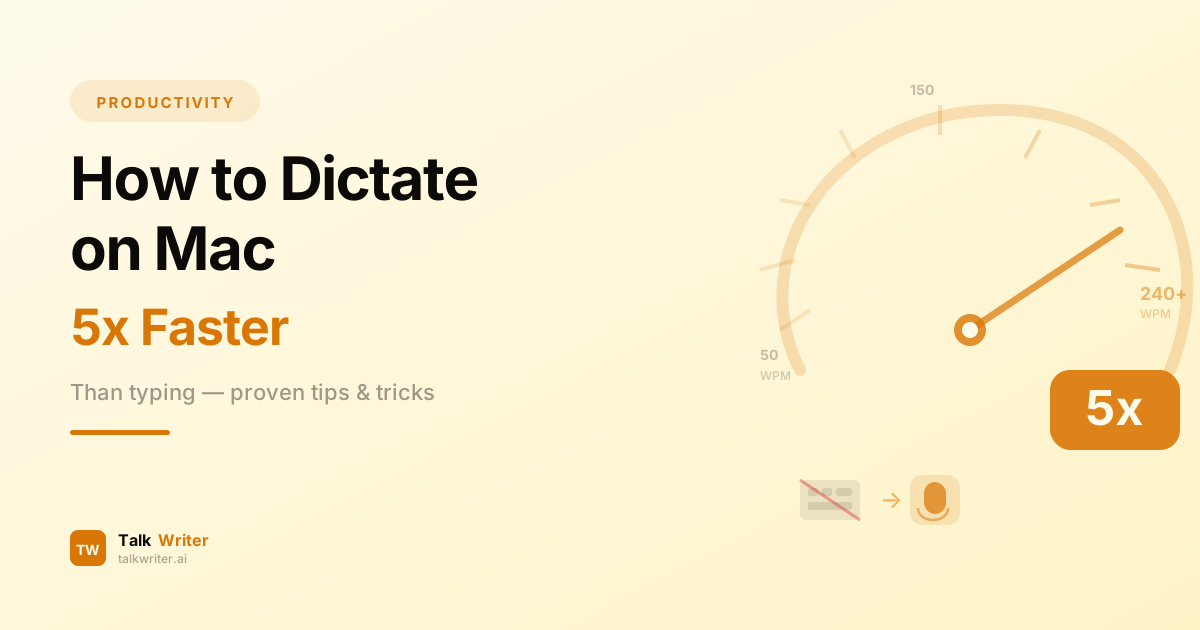
You type about 40 words per minute. You speak at 150. That gap represents thousands of words you could be producing every single day if you switched from your keyboard to your voice. Whether you are drafting emails, writing reports, or composing long-form content, learning how to dictate on Mac can transform the way you work.
This guide walks you through everything: setting up dictation on your Mac, choosing the right tools, improving your accuracy, and building the habits that will make voice typing second nature. By the end, you will be dictating faster and more accurately than most people can type.
Why Dictation Is Faster Than Typing (The Numbers)
Before diving into the how-to, let's look at the data. Research from Stanford's Human-Computer Interaction lab found that speech input is roughly 3x faster than typing on a keyboard. But with practice and the right tools, that multiplier climbs even higher.
Here is how the numbers break down:
- Average typing speed: 40 WPM for the general population, 50-60 WPM for office workers who type daily
- Professional typists: 65-75 WPM, with only 1% of all typists exceeding 100 WPM
- Natural speaking rate: 150-160 WPM in normal conversation
- Dictation with modern software: 120-150 WPM after accounting for pauses and corrections
- Trained dictation users: 150-240+ WPM with AI-powered tools that handle formatting automatically
A study of 30 participants found that voice dictation was 3.2x faster for short messages under 50 words, 2.7x faster for medium messages, and 2.1x faster for longer documents. Even the fastest typists at 80+ WPM could not match dictation speed for quick notes and messages.
The bottom line: if you type at 40 WPM and dictate at 150+ WPM, you are looking at nearly a 4x speed improvement. With AI-powered tools like TalkWriter that handle punctuation and formatting automatically, you spend less time editing and the effective speed gain approaches 5x.
What About Accuracy?
A common concern with voice typing is accuracy. Here is what the data shows: the average typing error rate is about 8 mistakes per 100 words. Voice dictation in a quiet environment produces an average error rate of just 4%. Modern AI dictation tools achieve 95-99% accuracy, which means fewer corrections than most people make while typing.
The catch is environment. In noisy settings, dictation error rates climb to around 12%. That is why your setup matters, and we will cover that in detail below.
Step-by-Step: Setting Up Dictation on Your Mac
macOS includes built-in dictation that works in any text field across the system. Here is how to set it up from scratch.
Step 1: Enable Dictation in System Settings
- Click the Apple menu in the top-left corner of your screen
- Select System Settings
- Scroll down in the sidebar and click Keyboard
- Find the Dictation section on the right side
- Toggle Dictation to On
When you enable dictation, your Mac may ask you to confirm and download language files. On Apple Silicon Macs (M1 and later), dictation processing happens entirely on your device for better privacy and speed.
Step 2: Choose Your Keyboard Shortcut
The default shortcut to start dictation is pressing the Fn (Function) key twice. You can customize this:
- In the Dictation settings, click the Shortcut dropdown menu
- Choose from preset options or select Customize to set your own key combination
- Pick something easy to reach, like Option+Z or a single function key press
A shortcut you can trigger without thinking is essential for making dictation a habit. If the shortcut feels awkward, you will default back to typing.
Step 3: Select Your Microphone
- In Dictation settings, click the dropdown next to Microphone source
- Choose your preferred microphone or select Automatic
- If you use an external microphone, make sure it is plugged in and selected
Your Mac's built-in microphone works fine for casual dictation, but an external microphone makes a noticeable difference in accuracy, especially in environments with any background noise.
Step 4: Add Your Languages
- Click the Edit button next to Languages in the Dictation settings
- Select the languages and regional dialects you want to use
- When dictating, you can switch languages by clicking the language indicator next to your cursor
If you work in multiple languages, adding them here lets you switch on the fly without changing settings each time.
Step 5: Check for Conflicts
One important detail: dictation does not work if Voice Control is enabled. To check:
- Go to System Settings > Accessibility > Voice Control
- Make sure Voice Control is turned off
With these steps complete, you can start dictating by pressing your shortcut key in any text field on your Mac.
The Limitations of Built-in Mac Dictation
Apple's built-in dictation is a solid starting point, but it has real limitations that become frustrating quickly:
- 60-second session timeout — You have to restart dictation every minute during longer writing sessions
- Basic formatting only — You need to speak punctuation commands like "period" and "new paragraph" manually
- No AI rewriting — What you say is exactly what appears, filler words and all
- Accuracy drops in noise — Performance falls to 65-75% accuracy with background sounds
- No custom vocabulary — It struggles with technical terms, brand names, and proper nouns
For quick text messages or short email replies, built-in dictation works. For anything longer or more demanding, you need a dedicated dictation tool.
Upgrading to AI-Powered Dictation
This is where dedicated Mac dictation apps change the game. Tools like TalkWriter use AI to go beyond basic speech-to-text. Instead of just transcribing your words, they intelligently format your output with proper punctuation, capitalization, and paragraph structure.
Here is what a dedicated tool adds to your dictation workflow:
- Unlimited session length — Dictate for as long as you need without timeouts
- Automatic punctuation and formatting — No need to say "period" or "comma"
- Smart context awareness — Recognizes technical terms, proper nouns, and industry jargon
- Works in every app — System-wide integration with Mail, Slack, VS Code, Chrome, and any other text field
- Higher accuracy — AI-powered processing delivers 95-99% accuracy in normal conditions
TalkWriter is designed specifically for Mac and runs natively on macOS, which means it integrates at the system level rather than running in a browser tab. You can dictate into any application on your Mac, from writing code to composing emails.
Mac Dictation Tips for Maximum Speed
Getting dictation set up is just the beginning. These tips will help you reach and sustain dictation speeds that truly outpace typing.
Think Before You Speak
The biggest speed killer in dictation is not the software, it is pausing to think mid-sentence. Before you start dictating, take a few seconds to mentally outline what you want to say. You do not need a detailed plan. Just know your next two or three sentences.
This single habit is the difference between dictating at 80 WPM with lots of pauses and dictating at 150+ WPM in clean, flowing sentences.
Speak in Complete Sentences
Fragments and half-finished thoughts create more editing work later. Train yourself to speak in complete sentences and complete thoughts. If you need to pause, pause between sentences rather than in the middle of one.
Use a Consistent Voice and Pace
Dictation accuracy improves when you maintain a consistent tone, volume, and speaking pace. Dramatic changes in speed or volume can trip up even the best speech recognition. Find your natural speaking rhythm and stick with it.
Invest in a Good Microphone
Your Mac's built-in microphone picks up keyboard sounds, fan noise, and ambient room noise. A dedicated USB microphone or a quality headset eliminates most of these issues. You do not need an expensive podcasting microphone. A $30-50 USB headset with a boom microphone will dramatically improve accuracy.
Recommended setups for voice typing tips that actually work:
- Budget: Apple EarPods or any wired headset with a microphone
- Mid-range: A USB headset with noise-canceling microphone
- Professional: A desktop USB condenser microphone with a pop filter
Create a Quiet Environment
Dictation accuracy drops from roughly 96% in quiet rooms to about 88% with moderate background noise. If you work in a noisy space, consider noise-canceling headphones with a built-in microphone, or simply close your office door and windows before a dictation session.
Learn Dictation-Specific Commands
Whether you are using Apple's built-in dictation or a third-party tool, knowing voice commands speeds up your workflow:
- "New line" or "new paragraph" for formatting
- "Period," "comma," "question mark" for punctuation
- "Select all," "undo," "copy" for editing
- "Cap" before a word to capitalize it
- "Numeral" before a number to type digits instead of words
With AI-powered tools like TalkWriter, many of these become unnecessary because the software handles punctuation and formatting automatically. But knowing them gives you fine-grained control when you need it.
Practical Exercises to Build Your Dictation Speed
Like any skill, dictation improves with deliberate practice. Here are exercises designed to take you from beginner to proficient in two to four weeks.
Exercise 1: The Five-Minute Warm-Up (Week 1)
Start each day with five minutes of unstructured dictation. Open a blank document, start your dictation tool, and simply talk about your plans for the day or summarize what you did yesterday. Do not worry about quality. The goal is getting comfortable hearing your own voice produce text.
Target: Complete five days of warm-ups. By day five, you should feel less self-conscious about speaking to your computer.
Exercise 2: Email Dictation (Week 1-2)
Commit to dictating every email you write for one full week. Emails are perfect practice material because they are short, conversational, and low-stakes. Before each email, take three seconds to mentally outline your response, then dictate it in one pass.
Target: Dictate at least 10 emails per day. Track how long each one takes compared to typing.
Exercise 3: Timed Paragraphs (Week 2-3)
Set a timer for two minutes and dictate about a topic you know well. Count the words when you finish. Repeat daily and track your WPM progression.
Starting benchmark: 80-100 WPM is typical for beginners Week 2 goal: 120-130 WPM Week 3 goal: 140-160 WPM
Exercise 4: Read and Dictate (Week 2-3)
Pick a paragraph from a book or article and read it aloud as dictation. Compare the output to the original. This exercise trains both your speaking clarity and your ability to spot and correct errors efficiently.
Target: Achieve 95%+ accuracy on read-aloud passages by the end of week three.
Exercise 5: Long-Form Flow (Week 3-4)
Dictate a complete document of 500 words or more in a single session. This could be a blog post draft, a project update, or meeting notes. The goal is sustaining your dictation speed and accuracy over a longer period without reverting to typing.
Target: Complete a 500-word document in under four minutes (125+ WPM effective speed).
Exercise 6: Edit by Voice (Week 4)
The final skill is making corrections and edits using voice commands rather than reaching for your keyboard. Practice selecting text, deleting words, and repositioning your cursor using only your voice. This is where tools with advanced voice command support shine.
Target: Complete an entire document, including edits, without touching the keyboard.
Common Mistakes That Slow Down Dictation
Avoid these pitfalls as you build your dictation practice.
Editing While You Dictate
The fastest dictation workflow separates creation from editing. Dictate your entire draft without stopping to fix mistakes. Then go back and edit. Trying to fix errors in real time breaks your flow and cuts your effective speed in half.
Speaking Too Slowly
Many beginners slow down their speech dramatically, thinking it helps accuracy. Modern speech recognition actually performs better at natural speaking speeds. Talk at your normal conversational pace. The software is designed for it.
Ignoring Your Environment
Trying to dictate in a coffee shop or open office without a directional microphone is a recipe for frustration. Match your environment to your tools. If you cannot control the noise, use a noise-canceling headset.
Not Practicing Consistently
Dictation speed improves rapidly with daily practice but plateaus if you only use it occasionally. Commit to at least 15 minutes of dictation per day for the first month. After that, it becomes automatic and you will not need dedicated practice sessions.
For a comparison of the best tools to use with this workflow, see our best voice dictation apps for Mac and our complete voice-to-text Mac guide.
Dictation Speed vs. Typing Speed: A Real-World Comparison
Let's put concrete numbers on the productivity gain. Consider a professional who writes 3,000 words per day, a common workload for content writers, marketers, and knowledge workers.
| Metric | Typing (50 WPM) | Dictation (150 WPM) |
|---|---|---|
| Raw input time | 60 minutes | 20 minutes |
| Error correction | 15 minutes | 10 minutes |
| Formatting | 10 minutes | 5 minutes (AI-assisted) |
| Total time | 85 minutes | 35 minutes |
| Daily time saved | — | 50 minutes |
| Weekly time saved | — | 4+ hours |
Over a year, that is more than 200 hours saved, or about five full work weeks. And this is a conservative estimate using 150 WPM dictation speed rather than the 200+ WPM that experienced users achieve with AI-powered tools.
Setting Up TalkWriter for Maximum Performance
If you want the best dictation experience on Mac, here is how to get started with TalkWriter in under two minutes.
- Download TalkWriter from talkwriter.ai and install it on your Mac
- Grant microphone access when prompted during first launch
- Set your preferred shortcut for activating dictation
- Choose your language from the 90+ supported options
- Start dictating into any app on your Mac
TalkWriter's free plan includes 2,000 words per week, which is enough to complete the practice exercises above and experience the speed difference firsthand. The Pro plan removes the word limit for $12 per month, making it one of the most affordable professional dictation tools available.
What makes TalkWriter stand out for dictation speed is its AI-powered formatting. You do not need to say "period" or "comma." The software understands natural speech patterns and adds punctuation, capitalization, and paragraph breaks automatically. This means your dictated text is ready to send or publish with minimal editing, and your effective words-per-minute stays high.
Building a Daily Dictation Habit
The research is clear: the first week of dictation is typically slower than typing as you adjust. But daily 15-minute practice sessions accelerate the learning curve dramatically. Most users match their typing speed within three to five days and surpass it within two weeks.
Here is a simple habit-building framework:
Days 1-3: Dictate all short messages, emails, and chat replies. Keep sessions under two minutes each.
Days 4-7: Add medium-length writing to your dictation practice. Dictate meeting notes, project updates, and short documents.
Week 2: Make dictation your default input method. Only switch to typing for tasks that genuinely require it, like filling in spreadsheets or writing code syntax.
Week 3-4: Focus on reducing editing time. Pay attention to which phrases or words the software misinterprets and adjust your pronunciation or word choice accordingly.
Month 2 and beyond: Dictation is now your primary writing method. You will find yourself reaching for the microphone instinctively, even for quick two-sentence replies.
When Typing Still Makes Sense
Dictation is not the right tool for every situation. Typing remains better for:
- Code syntax and special characters — Though AI coding assistants are changing this rapidly
- Quiet environments where speaking aloud is disruptive — Libraries, shared offices without private spaces
- Highly formatted content — Complex tables, spreadsheets, and structured data entry
- Confidential conversations — When you cannot speak aloud for privacy reasons
The key is recognizing which situations benefit from dictation and which do not, then defaulting to voice whenever it makes sense. For most knowledge workers, that means dictating 70-80% of their daily writing. If you're curious how voice dictation compares to AI writing tools like ChatGPT or Claude, see our AI writing assistants vs voice dictation comparison.
The Bottom Line
Learning how to dictate on Mac is one of the highest-leverage productivity skills you can develop. The gap between typing at 40-60 WPM and dictating at 150+ WPM represents hours of saved time every single week. With modern AI-powered tools handling formatting and punctuation, the editing overhead that once made dictation impractical has largely disappeared.
Start with Apple's built-in dictation to get comfortable with voice typing. Then upgrade to a dedicated tool like TalkWriter to unlock the full speed and accuracy benefits. Commit to 15 minutes of daily practice, and within two weeks you will wonder why you ever typed everything by hand.
Your voice is the fastest keyboard you own. It is time to start using it. If you're also exploring AI writing tools alongside dictation, see our comparison of AI writing assistants vs voice dictation to understand when each approach wins.
Have questions about Mac dictation tips or getting started with voice typing? Our team is here to help — reach out anytime.
Related Articles
AI Writing Assistants vs Voice Dictation: Which Makes You Faster?
AI writing assistants and voice dictation both promise to boost your writing productivity — but they work in fundamentally different ways. Here's which one actually makes you faster.
Best Voice Dictation Apps for Mac in 2026: The Definitive Comparison
We compared the top 8 voice dictation apps for Mac — from AI-powered tools to built-in options. Find out which one helps you write 5x faster.
Voice to Text on Mac: The Ultimate Guide (2026)
Learn how to use voice to text on Mac like a pro. This complete guide covers setup, tips, voice commands, and the best tools for fast, accurate dictation in 2026.