Apple Built-in Dictation vs Third-Party Apps: What You're Missing
TalkWriter Team · Product
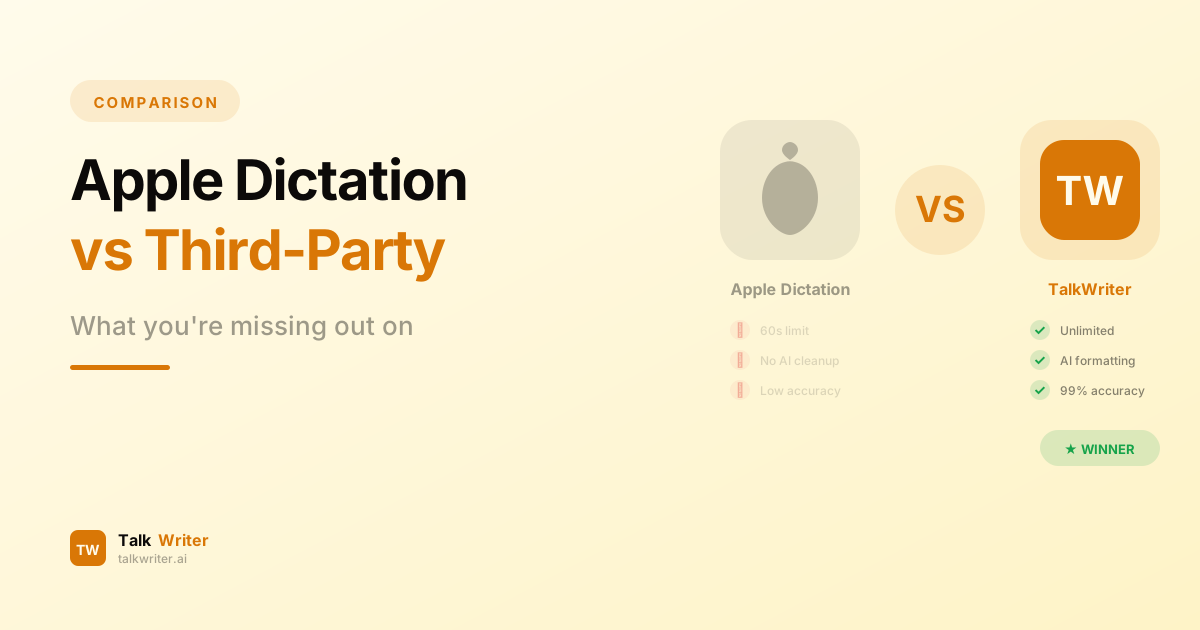
Every Mac ships with dictation built right in. Press the microphone key or double-tap Fn, start talking, and your words appear on screen. It works, it's free, and it requires zero setup. So why would anyone bother with a third-party dictation app?
Because once you push Apple Dictation beyond casual use, its cracks become impossible to ignore. The 30–60 second timeout. The garbled technical terms. The complete absence of AI-powered cleanup. For professionals, writers, students, and anyone who relies on voice input for real work, built-in dictation on Mac is a starting point — not a destination.
This guide breaks down exactly where Apple Dictation falls short and what modern third-party apps like TalkWriter deliver that Apple simply cannot match.
How Apple's Built-in Dictation Actually Works
Before diving into the limitations, it helps to understand what Apple Dictation is and what it was designed to do.
Apple Dictation is a system-level feature accessible from any text field on macOS. On Apple Silicon Macs (M1 and later), dictation runs entirely on-device, meaning your voice data stays on your machine. This is a genuine privacy advantage. On older Intel Macs, audio may be sent to Apple's servers for processing.
Dictation supports auto-punctuation in certain languages, basic voice commands like "new paragraph" and "comma," and the ability to type and dictate simultaneously on newer hardware. It handles everyday conversational English reasonably well and can achieve around 90–92% accuracy under ideal conditions — a quiet room, clear speech, common vocabulary.
For firing off a quick text message or adding a sentence to an email, it does the job. The problems start when you need more than that.
The Real Limitations of Apple Dictation on Mac
The Session Timeout Problem
The most frustrating limitation of Apple Dictation is its session timeout. macOS dictation is designed for short bursts — it will stop listening after roughly 30 to 60 seconds, even if you are still speaking. There is no setting to extend this. There is no workaround. The microphone simply turns off, and you have to reactivate it to continue.
For anyone writing anything longer than a paragraph — an email, a report, a blog post, meeting notes — this means constant interruption. You speak for a minute, dictation stops, you press the key again, reorient yourself, and start over. The mental flow is shattered every time.
This limitation exists on macOS despite the fact that iOS and iPadOS removed their timeout restrictions years ago starting with iOS 15. It is a deliberate design choice on Apple's part, apparently to conserve system resources, but it makes macOS dictation impractical for sustained writing.
Accuracy That Drops Under Real Conditions
Apple quotes accuracy figures for dictation in controlled environments. In practice, the numbers tell a different story.
In a quiet room with clear standard English, Apple Dictation reaches roughly 90–92% accuracy. That sounds acceptable until you realize it means approximately one error for every ten words. In a 500-word email, that could mean 40 to 50 mistakes you need to manually find and fix.
The situation gets worse in real-world conditions. With any background noise — an open-plan office, a coffee shop, a home with other people — accuracy can drop to 65–75%. At that point, you are spending more time correcting errors than you saved by not typing.
No Custom Vocabulary or Learning
Apple Dictation does not learn from your corrections. It does not build a custom vocabulary over time. It does not adapt to your speech patterns or the specialized terms you use every day.
If you work in technology, medicine, law, finance, or any field with domain-specific terminology, this is a dealbreaker. Apple Dictation will consistently mangle terms it does not recognize. Industry jargon, project names, product names, acronyms, and foreign proper nouns all become guessing games.
Dragon Dictate, the former industry leader, built its reputation on learning user vocabulary over time. Apple has never offered anything comparable. You cannot add custom words. You cannot train the system. Every session starts from the same baseline, making the same mistakes on the same terms.
Limited Formatting Commands
Apple Dictation supports a basic set of formatting commands. You can say "period," "comma," "question mark," "new line," and "new paragraph." You can say "allcaps" to capitalize a word. Auto-punctuation handles some basics automatically.
But that is essentially where it ends. You cannot dictate rich formatting like bold, italic, or underline. You cannot say "delete that" or "go back" — those commands belong to Voice Control, which is a separate accessibility feature that disables standard Dictation when active. You cannot create bullet lists, numbered lists, or headings by voice.
To make matters worse, recent macOS updates have broken some of the formatting commands that do exist. Users on macOS 15.3 and later have reported that "new line" and "new paragraph" commands insert a space instead of an actual line break — a bug that persists across multiple updates.
No AI Cleanup or Post-Processing
This is the single biggest gap between Apple Dictation and modern third-party alternatives. Apple Dictation has zero AI-powered post-processing.
What you say is exactly what appears on screen, errors and all. There is no grammar correction. No intelligent rephrasing. No cleanup of filler words like "um" and "uh." No restructuring of rambling sentences into clear, professional prose. No smart paragraph breaks based on topic shifts.
When you speak naturally, you do not speak in perfectly formed sentences. You pause, restart, change direction, and use informal phrasing. Apple Dictation faithfully transcribes all of that messiness and leaves you to clean it up manually.
Modern dictation apps powered by AI can take your natural, conversational speech and transform it into polished, well-structured text — automatically. This single capability changes voice dictation from a novelty into a genuine productivity tool.
Inconsistent Behavior Across Applications
Apple Dictation does not behave identically in every app. Users regularly report that dictation works in one application but fails silently in another. Text sometimes appears in the wrong position. The microphone indicator disappears without warning. Some apps handle dictation input differently, leading to unpredictable results.
There is no error message when dictation fails. It simply stops working, and you are left wondering whether you said something wrong, whether the app lost focus, or whether macOS decided your session was over.
No Support for Pre-Recorded Audio
Apple Dictation is strictly a live input feature. You cannot feed it an audio file, a recorded interview, a voice memo, or a podcast episode for transcription. If you have existing audio content that needs to be converted to text, Apple Dictation cannot help you.
What Third-Party Mac Dictation Apps Offer
Modern third-party dictation apps address every one of these limitations — and then go significantly further.
Unlimited Dictation Sessions
Third-party apps like TalkWriter do not impose arbitrary session timeouts. You can dictate for as long as you need — five minutes, thirty minutes, an hour. The app keeps listening, keeps transcribing, and keeps up with your natural speaking pace. This alone transforms dictation from a feature you use for quick sentences into a tool you use for real writing.
Higher Accuracy With AI Processing
While Apple Dictation tops out around 90–92% accuracy in ideal conditions, AI-powered dictation apps routinely achieve 95–99% accuracy. They accomplish this through more sophisticated speech recognition models, better noise handling, and contextual understanding of what you are likely to say based on the surrounding text.
TalkWriter's AI engine understands technical jargon, proper nouns, and domain-specific terminology. It uses context to distinguish between homophones and resolve ambiguities that trip up simpler systems. The result is text that is ready to use with minimal or no manual editing.
AI-Powered Formatting and Cleanup
This is where the gap between built-in dictation and modern apps becomes vast. TalkWriter does not just transcribe your words — it processes them through AI that automatically adds proper punctuation, capitalization, and paragraph breaks. It removes filler words. It restructures awkward phrasing. It transforms spoken language into written language.
You speak naturally and conversationally. TalkWriter outputs clean, professional text. The difference is like having a skilled editor working in real time between your mouth and the page.
System-Wide Integration
TalkWriter works in every app on your Mac — Mail, Slack, VS Code, Chrome, Pages, Word, Notion, and any other application with a text field. It runs as a native macOS app with system-level integration, so there is no copying and pasting from a separate window. Your dictated text appears directly where you need it.
90+ Language Support
While Apple Dictation supports roughly 30 languages (with varying feature availability), TalkWriter supports over 90 languages. You can dictate in English, Spanish, Arabic, Chinese, Japanese, German, French, and dozens more. Language switching is seamless, and accuracy remains high across all supported languages.
Side-by-Side Feature Comparison
| Feature | Apple Dictation | TalkWriter |
|---|---|---|
| Price | Free (built-in) | Free plan / $12/mo Pro |
| Session Length | 30–60 seconds max | Unlimited |
| Accuracy (quiet room) | ~90–92% | 95%+ |
| Accuracy (noisy environment) | ~65–75% | 90%+ |
| AI Formatting & Cleanup | None | Full AI post-processing |
| Auto-Punctuation | Basic | Advanced with context |
| Custom Vocabulary | Not supported | Learns technical terms |
| Filler Word Removal | No | Automatic |
| Languages | ~30 | 90+ |
| Works in All Apps | Yes | Yes |
| Formatting Commands | Basic (buggy) | Smart AI formatting |
| Audio File Transcription | No | No (live dictation) |
| On-Device Processing | Yes (Apple Silicon) | Hybrid (local + cloud) |
| Dictation Speed | Standard | 240+ WPM |
| macOS Native App | Built-in feature | Full native app |
| Offline Support | Yes (Apple Silicon) | Basic dictation offline |
Real-World Use Cases: Where Apple Dictation Fails and TalkWriter Succeeds
The Email-Heavy Professional
Sarah manages a team of twelve and writes 30 to 40 emails per day. She tried Apple Dictation to speed up her workflow but found the 60-second timeout maddening. Every email required multiple restarts. Technical project names were consistently wrong. She spent more time fixing errors than she would have spent typing.
With TalkWriter, Sarah dictates entire emails in a single session. The AI cleans up her conversational tone into professional prose, correctly handles project names and team member names after learning them, and adds proper formatting automatically. Her email throughput doubled.
The Graduate Student Writing a Thesis
Marcus is writing a 200-page dissertation in biomedical engineering. Apple Dictation cannot handle his technical vocabulary — terms like "polymerase chain reaction" and "immunohistochemistry" are garbled every time. The session timeout makes long-form writing impossible. And the lack of formatting means he has to manually structure everything after dictating.
TalkWriter understands his scientific terminology, lets him dictate continuously for as long as he needs, and automatically formats his text with proper paragraph breaks. Marcus writes his first drafts at three times his typing speed and estimates he saved over 100 hours across the project.
The Journalist on Deadline
Priya covers breaking news and needs to file stories quickly from noisy environments — press conferences, city council meetings, busy newsrooms. Apple Dictation's accuracy craters with background noise, dropping below 70%. The results are unusable without extensive manual cleanup.
TalkWriter's AI-powered noise handling maintains high accuracy even in challenging acoustic environments. Priya dictates her stories directly into her editor, and the AI handles punctuation, paragraph structure, and cleanup. She files stories faster than colleagues who type, even in noisy settings.
The Developer Documenting Code
Alex writes technical documentation for an API platform. Apple Dictation turns "RESTful endpoints" into "restful and points" and "OAuth 2.0" into "oh off 2.0." Every technical term requires manual correction. Formatting commands do not support code blocks, numbered steps, or consistent heading structures.
With TalkWriter, Alex dictates documentation with accurate technical terminology. The AI correctly handles API terms, code references, and technical concepts. What used to take an afternoon of careful typing now takes an hour of natural dictation.
When Apple Dictation Is Enough
To be fair, Apple Dictation has its place. If your dictation needs are limited to occasional short messages — a quick text reply, a brief search query, a sentence or two added to a note — built-in dictation is perfectly adequate. It is free, requires no installation, and respects your privacy with on-device processing on Apple Silicon.
Apple has also made genuine improvements to its dictation engine. The macOS Tahoe transcription engine is reportedly 55% faster than industry-standard Whisper models, and the ability to type and dictate simultaneously on M-series Macs is a nice quality-of-life feature.
But "adequate for quick messages" is a very different thing from "suitable for real work." The moment your needs go beyond a sentence or two, you will run into the limitations outlined above.
Why TalkWriter Is the Natural Upgrade
TalkWriter was built specifically for the Mac users who have outgrown Apple Dictation. It is not a cross-platform afterthought or a browser-based tool — it is a native macOS application designed to integrate seamlessly with your existing workflow.
The transition is effortless. If you can press a keyboard shortcut and talk, you can use TalkWriter. The difference is that when you stop talking, you get polished, professional text instead of a rough transcription that needs extensive editing.
The Free Plan Lets You Compare
TalkWriter offers a generous free plan with 2,000 words per week — enough to genuinely compare it against Apple Dictation in your actual workflow. You do not need to commit to a subscription to experience the difference. Use both side by side for a week and let the results speak for themselves.
Professional-Grade Output at $12 Per Month
For users who need unlimited dictation, the Pro plan at $12 per month unlocks everything — unlimited words, full AI formatting, all 90+ languages, and priority processing. Compare that to the hidden cost of Apple Dictation: the hours you spend every week fixing errors, restarting timed-out sessions, and manually formatting text.
Making the Switch
If you are currently using Apple Dictation and hitting its limitations, the upgrade path is simple:
- Download TalkWriter from talkwriter.ai — it installs in under a minute
- Try the free plan with your real daily work, not a test paragraph
- Compare the output — look at accuracy, formatting, and how much editing each requires
- Measure your time — track how long it takes to produce finished text with each tool
Most users who make this comparison do not go back to Apple Dictation for anything beyond the occasional quick message.
To find the right third-party app for your workflow, read our best dictation apps for Mac 2026 roundup or our complete guide to voice to text on Mac.
The Bottom Line
Apple's built-in dictation is a convenience feature. It was designed for quick voice input — a sentence here, a search query there. For that purpose, it works well enough and the price is right.
But if you write for a living, communicate extensively by email, create documentation, produce content, or simply want to work faster without sacrificing quality, Apple Dictation's limitations are costing you time every single day. The session timeout alone wastes countless minutes in restarts and mental context switching.
Third-party apps like TalkWriter have moved far beyond what built-in dictation can offer. AI-powered formatting, unlimited sessions, superior accuracy, and 90+ language support turn voice dictation from a gimmick into a genuine productivity multiplier.
The best way to see the difference is to experience it yourself.
Have questions about switching from Apple Dictation to TalkWriter? Our team is here to help you make the transition smooth and get the most out of voice dictation on your Mac.
Related Articles
Dragon Dictation Is Dead on Mac — Here Are the Best Alternatives
Dragon NaturallySpeaking was discontinued for Mac in 2018 and the consumer edition is gone entirely. Here are the 7 best Dragon dictation alternatives for Mac users in 2026.
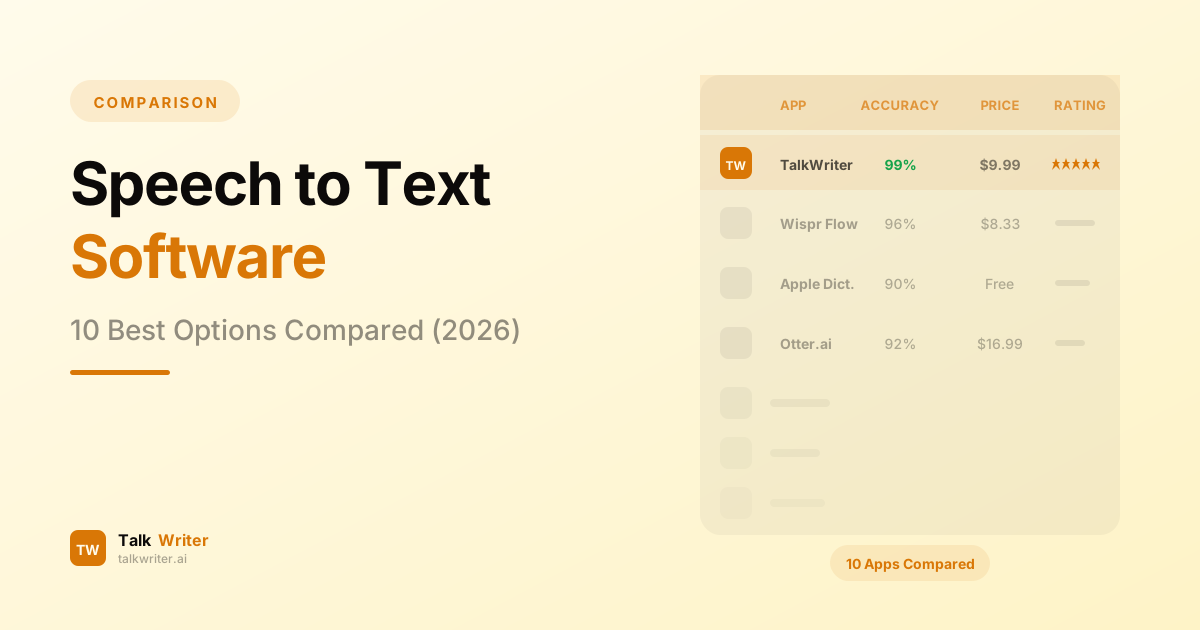
Speech to Text Software: 10 Best Options Compared (2026)
We tested and compared the 10 best speech to text software options in 2026 — from free built-in tools to AI-powered transcription engines. Find the right STT tool for your workflow.
AI Writing Assistants vs Voice Dictation: Which Makes You Faster?
AI writing assistants and voice dictation both promise to boost your writing productivity — but they work in fundamentally different ways. Here's which one actually makes you faster.